X-Plane 12 Configuration
How to configure X-Plane 12 for the best results
Ensure your X-Plane configuration is setup correctly for XEarthLayer to operate optimally. For most users with an existing well tuned X-Plane system, XEarthLayer should not impact framerates significantly.
Scenery Ordering
Setting the scenery pack order in your X-Plane 12/Custom Scenery/scenery-packs.ini file is essential to ensure all of your scenery loads with the correct priority relative all others.
Scenery Pack Loading Order
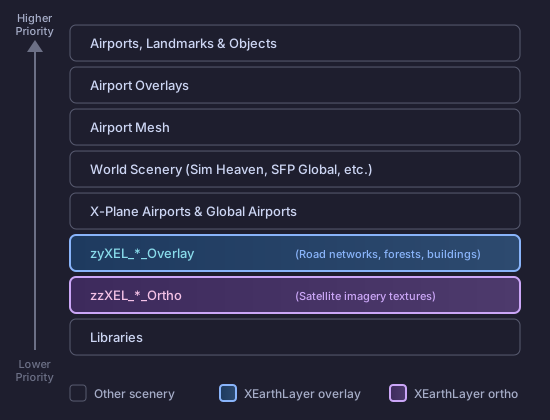
XEarthLayer uses a best effort attempt by using a specific naming convention to ensure scenery is ordered correctly in X-Plane’s scenery pack file. XEarthLayer scenery files are all prefixed zzXEL_<ortho> or zyXEL_<overlay>.
When X-Plane launches for the first time after any change to the Custom Scenery folder, it rebuilds the scenery-packs.ini file based on the scenery packs available. It is likely that this process will result in incorrect ordering of the scenery packs installed.
Ensure you exit from X-Plane before starting a flight, then use the reference below to order your scenery correctly in the scenery pack file.
I
1000 Version
SCENERY

SCENERY_PACK Custom Scenery/{Airports, landmarks, other object based scenery}
SCENERY_PACK Custom Scenery/{Airport Overlays}
SCENERY_PACK Custom Scenery/{Airport Mesh}
SCENERY_PACK Custom Scenery/{Sim Heaven X-World, other layers (SFP Global etc)}
SCENERY_PACK Custom Scenery/X-Plane Airports
SCENERY_PACK *GLOBAL_AIRPORTS*
SCENERY_PACK Custom Scenery/X-Plane Landmarks

# XEarthLayer Start
SCENERY_PACK Custom Scenery/zyXEL_<region>_<overlay>
{...}
SCENERY_PACK Custom Scenery/zzXEL_<region>_<ortho>
{...}
# XEarthLayer End

SCENERY_PACK Custom Scenery/{Libraries}
X-Plane Graphics Settings
X-Plane 12 offers extensive graphics customization, but pushing every slider to maximum will overwhelm even high-end systems. Finding the right balance ensures smooth framerates while still enjoying XEarthLayer’s satellite imagery.
Settings That Matter Most
Texture Resolution — This directly correlates with your GPU’s VRAM capacity. If you exceed your available VRAM, X-Plane will constantly swap textures in and out of memory, causing stutters. As a general guide:
- 8GB VRAM: Medium to High
- 12GB+ VRAM: High to Maximum
Antialiasing — X-Plane offers FSAA and MSAA options. MSAA above 2× will noticeably impact performance even on high-end graphics cards. For most systems, 2× MSAA provides a good balance between image quality and framerate.
FSR (FidelityFX Super Resolution) — AMD’s upscaling technology renders at a lower resolution then upscales the image. This can dramatically improve performance with a modest reduction in image sharpness. If you’re struggling with framerates, try FSR in Quality or Balanced mode before reducing other settings.
World Objects — Controls the density of autogen buildings, vegetation, and other scenery objects. This setting primarily affects CPU performance. Reducing it can help if you experience stutters in densely populated areas.
Rendering Distance — Determines how far X-Plane renders detailed scenery. Higher values increase the visible scenery range but require the system to process more data. XEarthLayer streams tiles based on your position, so moderate draw distances (Medium to High) work well without overwhelming the tile generation pipeline.
General Advice
Start with X-Plane’s default settings for your hardware tier, then adjust individual options based on what you observe. Monitor your framerate in different scenarios—cold and dark at a busy airport, cruise over varied terrain, approach into a detailed city—and tune settings accordingly.
When traversing large distances, X-Plane will begin swapping out and in large areas of scenery. This operation will reduce the framerate of the sim while it happens. Using lower texture resolution and fewer world objects reduces the amount of video memory that needs to be managed in and out when these loading events occur, reducing the impact to your flight experience.
XGPS2 Telemetry Broadcasting
XEarthLayer supports two prefetching modes: radial and heading-aware. By default, XEarthLayer uses radial prefetching, which preloads tiles in all directions around your aircraft. While effective, this approach downloads more data than necessary.
For optimal performance, enable XGPS2 telemetry broadcasting in X-Plane. This allows XEarthLayer to receive your aircraft’s position and heading in real-time, enabling intelligent heading-aware prefetching that focuses on tiles along your flight path.
Enabling XGPS2 in X-Plane
- Open X-Plane 12 and go to Settings
- Select the Network panel
- On the right side, enable Broadcast to all third-party apps on the network
X-Plane will broadcast position data on UDP port 49002 by default.
XEarthLayer Configuration
XEarthLayer listens for XGPS2 broadcasts automatically. If X-Plane is configured to use a different port, update your XEarthLayer configuration:
xearthlayer config set telemetry.port 49002Verifying Telemetry
When telemetry is working, the XEarthLayer dashboard will display:
- GPS position updating in real-time
- Heading indicator showing aircraft direction
- Prefetch mode showing “Heading-aware” instead of “Radial”
Recommended Add-ons
XEarthLayer provides satellite imagery, but pairing it with quality scenery add-ons enhances the overall visual experience. These add-ons complement XEarthLayer well:
SimHeaven X-World (Recommended)
SimHeaven X-World is a comprehensive free scenery enhancement that uses OpenStreetMap data combined with Microsoft building footprints to place objects realistically across the globe. Unlike automated autogen, objects are positioned based on real-world data, resulting in a more authentic look and feel.
X-World includes:
- Accurately placed buildings based on real-world footprints
- Road networks and infrastructure
- Vegetation and forest coverage
- Continental packages for Europe, North America, South America, Asia, Africa, Australia, and Antarctica
If you’re only going to install one scenery add-on alongside XEarthLayer, we recommend X-World for its comprehensive coverage and seamless integration with satellite imagery.
GeoReality Global Forests V2
Global Forests V2 from Orbx provides scientifically accurate forest coverage worldwide. Real-world forest data has been analyzed to recreate authentic ecosystems with correct tree types, density, and height variations.
Global Forests includes:
- Over 400 unique forest files based on real-world analysis
- Accurate tree species placement by region
- Coverage for Europe, North America, South America, Asia, Oceania, and Africa
- Seamless integration with ortho scenery
This is a paid add-on available through Orbx Central.
X-Codr Airport Enhancement Package (AEP)
Airport Enhancement Package from X-Codr Designs dramatically improves the visual quality of default airports worldwide. Rather than adding new airports, AEP replaces existing textures and objects with high-quality alternatives featuring PBR materials and regional variations.
AEP includes:
- High-quality replacement models for airport buildings, hangars, and facades
- Ultra high-resolution pavement and marking textures
- New 3D vegetation matched to X-Plane 12’s forest system
- Detailed static ground vehicles, runway lights, beacons, and navaids
- Weather-reactive ground textures using X-Plane 12’s weather effects
- Regional variations giving airports a unique local character
AEP is compatible with other airport enhancement libraries and works seamlessly with ortho scenery. This is a paid add-on available from X-Plane.org.
Short Final Design SFD Global
SFD Global from Short Final Design enhances autogen buildings and landmarks across the globe with regionally appropriate variations. The package uses PBR materials and baked ambient occlusion for realistic rendering.
SFD Global includes:
- Eight distinct regional autogen styles: Africa & Middle East, Australia, East Asia, Mediterranean, New England, Scandinavia, South America, and US West Coast
- Unique 3D buildings with PBR materials for each region
- Detailed world-famous landmarks
- 4K photorealistic terrain and forest textures
- Seamless compatibility with ortho scenery overlays
This is a paid add-on available from X-Plane.org.