Frequently Asked Questions
Find answers to common questions about XEarthLayer.
General
What is XEarthLayer?
XEarthLayer is a just-in-time satellite imagery streaming system for X-Plane 12. Instead of downloading hundreds of gigabytes of ortho scenery upfront, XEarthLayer streams satellite imagery on-demand as you fly.
Which operating systems are supported?
Currently, XEarthLayer supports Linux only. macOS support may be added in the future if there is enough community interest.
Please add a feature request/up vote on Github if you would like to see XEarthLayer on macOS.
Windows is well supported by alternative products and likely will never be supported.
Is XEarthLayer free?
Yes, XEarthLayer is free and open source software released under the MIT license.
Can XEarthLayer be used with Microsoft Flight Simulator?
No.
Installation
Why won’t XEarthLayer run?
XEarthLayer should provide messages to the command line if there is an issue executing any part of the program. If you are not seeing any output, check your system journal for issues that would prevent XEarthLayer from starting.
# Check kernel log for OOM kills or process terminations
journalctl -k --since "1 hour ago" | grep -iE "oom|killed process|out of memory"

# Check for xearthlayer specific entries
journalctl --since "1 hour ago" | grep -i xearthlayer
These are some factors that could prevent XEarthLayer from launching:
- Incorrect system architecture for the binary
- System killing the process due to out of memory (OOM)
- Failure to initialize
fusemounts
Check XEarthLayer’s own logs for messages that may not be printed to stdout or stderr.
tail -f ~/.xearthlayer/xearthlayer.log
How do I update to the latest version?
Download the latest package for your distribution from the GitHub releases and install it over your existing installation.
My first flight after upgrading was slow. Is something wrong?
No, this is expected once and then it is over.
An upgrade can change the size of a generated tile, which makes every tile already in your cache stale. Stale tiles are detected and replaced the first time they are used, so your first flight afterwards re-downloads more than usual while the cache refills. It repairs itself as you fly.
xearthlayer cache clear. It discards the raw image chunks as well, which are still perfectly good and are what save the re-download, so it makes the refill considerably larger for no benefit.Why is terrain in the distance banded or striped?
Generated tiles carry a complete mipmap chain, 13 levels for a 4096x4096 texture. X-Plane clamps its texture sampling at the last declared level, so a truncated chain leaves distant terrain undersampled and produces visible banding along contours at grazing angles.
If you are seeing banding, the tiles in your cache were written by an older version and still declare a short chain. They are replaced as they are used, so the banding clears as you fly over the area again.
Usage
How much bandwidth does XEarthLayer use?
Bandwidth usage depends on many factors: the detail level of the scenery you’re flying over, how much scenery is already cached locally, and your cache size.
Starting from a cold cache, expect to download about 6-10GB of data to initialize the simulator. During flight, you can expect to use 3-5GB per degree of traversal, depending on scenery type.
If you have an internet connection with data limits or caps, increase your disk cache size as much as possible to minimize repeated downloads. However, for metered connections, XEarthLayer’s value diminishes significantly—you may want to consider storing Ortho tiles locally instead.
Can I use XEarthLayer offline?
XEarthLayer requires an internet connection to stream imagery. However, previously downloaded tiles are cached locally, so areas you’ve flown before will load from cache even without connectivity.
Troubleshooting
X-Plane does not load XEarthLayer scenery into the simulator
This is usually because XEarthLayer’s FUSE mounts are not listed in X-Plane’s Custom Scenery/scenery_packs.ini file.
Checklist:
- Ensure XEarthLayer is fully started and running before launching X-Plane. X-Plane indexes scenery at startup, so starting XEarthLayer afterward means its scenery won’t be detected.
- Verify that the
zzXEL_ortho/andyzXEL_overlay/packs are listed in yourscenery_packs.inifile. XEarthLayer uses a single consolidated mount for all installed regions, so there is one ortho entry and one overlay entry regardless of how many packages you have. They typically appear at the bottom but can be anywhere in the file:
SCENERY_PACK Custom Scenery/yzXEL_overlay/
SCENERY_PACK Custom Scenery/zzXEL_ortho/
See X-Plane 12 Configuration for the full recommended ordering.
If the above doesn’t resolve the issue, ask for help on Discord, the X-Plane.org forums, or create a GitHub issue.
Tiles are downloading but not appearing in X-Plane
This can happen for several valid reasons:
- You are flying in a region outside of XEarthLayer scenery coverage, but within the X-Plane or XEarthLayer loading range. X-Plane loads a large area around the aircraft to ensure scenery tiles are available before you can see them. XEarthLayer loads an even bigger radius to stay ahead of X-Plane.
- You have a scenery package installed that provides its own mesh. Some third-party scenery providers include custom mesh that overrides XEarthLayer scenery for that specific area.
Help! I am seeing magenta tiles on the scenery when I fly.
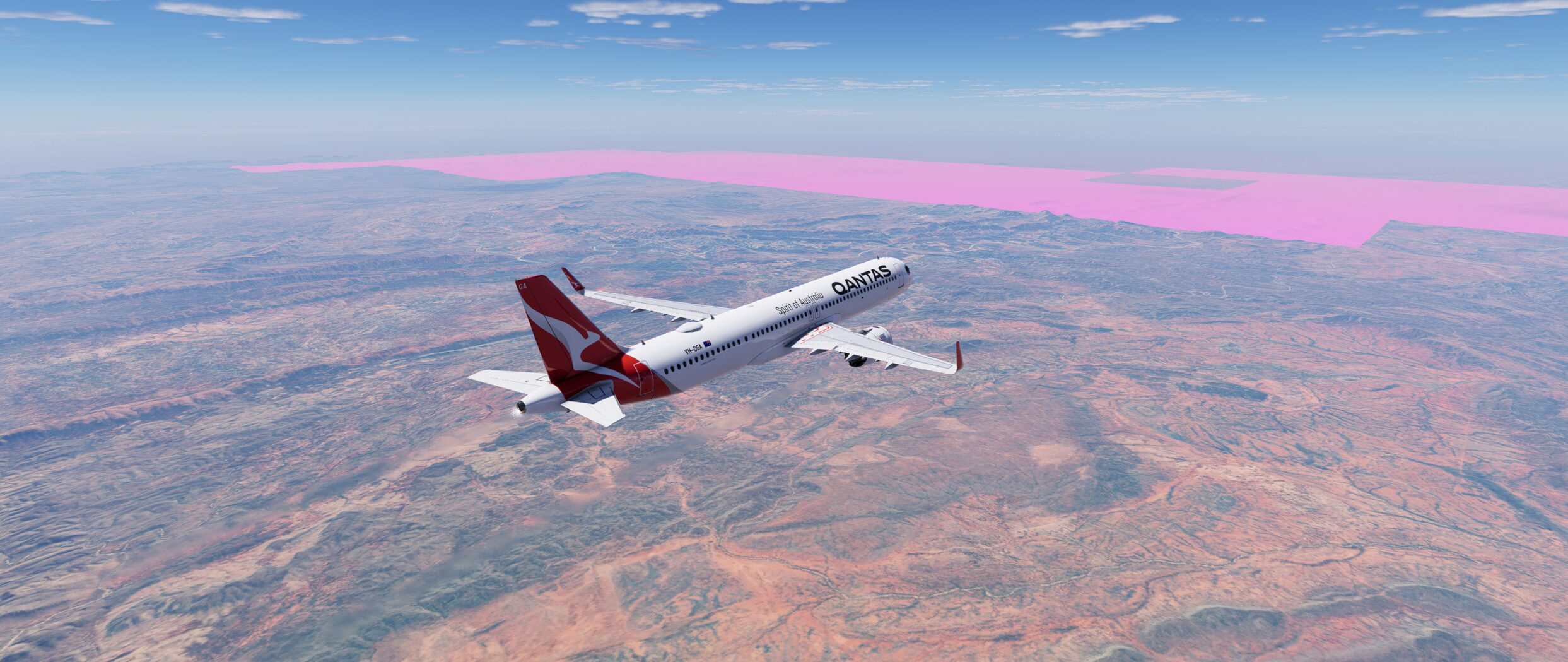
Magenta tiles are returned when XEarthLayer cannot deliver a tile within the configured timeout. The placeholder exists to keep the simulator moving. X-Plane blocks on the read until XEarthLayer answers, so without a deadline a slow tile would stall the sim rather than blur it.
generation.timeout bounds the whole round trip, from the moment X-Plane asks for a texture to the moment XEarthLayer hands one back. That includes time the request spends queued behind other work, not only the time spent building the tile. On a modest system the queue is usually the larger of the two, which is why placeholders often appear in bursts while individual tiles are still being built quickly.
Confirm it in the log
A timeout writes an error, and the job it cancelled writes its own duration:
ERROR TIMEOUT: DDS generation exceeded 10s ... tile_row=1456 tile_col=2184 tile_zoom=12
 WARN Task cancelled job_id=dds-1456_2184_ZL12 task_name=BuildAndCacheDds duration_ms=1918
Compare duration_ms against the timeout. Here the tile took under two seconds to build and spent the remaining eight waiting its turn, so the pipeline is saturated rather than incapable, and raising the timeout is the right fix. If duration_ms is close to the timeout instead, the tile genuinely is slow to build, and the load reductions below matter more than the deadline.
Raise the timeout
Start at 20 seconds and increase in steps of 10 until the placeholders stop. Do not go beyond 60.
[generation]
timeout = 20           ; Default is 10
Use one GPU for one job
If your machine has a single physical GPU, encode on the CPU with texture.compressor = ispc. GPU encoding is intended for systems with two physical GPUs, where one drives X-Plane and the other is free to encode. Sharing a single card between rendering and encoding costs you frames and slows tile delivery at the same time.
[texture]
compressor = ispc
Several adapters in xearthlayer diagnostics do not mean several GPUs. One card commonly appears more than once, once per graphics backend, as Vulkan and again as OpenGL. Count physical cards, not entries.
Reduce the load on your system
Placeholders that persist after the above are usually a configuration that exceeds what the machine can sustain, made worse by whatever else competes for it: slow or throttled downloads from the mapping service, operating system overhead, or disk I/O bottlenecks. Reduce the concurrency figures, test again, then raise them one at a time.
[generation]
threads = 4            ; Default is num_cpus / 2, try half of that

[executor]
max_concurrent_jobs = 6   ; Default is ceil(num_cpus * 0.75), try half
request_timeout_secs = 10 ; Per-chunk HTTP timeout
max_retries = 3           ; Retry attempts per failed chunk

[texture]
format = bc1           ; bc1 encodes faster and writes half as much as bc3
executor.network_concurrent, executor.cpu_concurrent, executor.disk_io_concurrent or cache.disk_io_profile, those keys no longer exist. Run xearthlayer config upgrade to strip them from your file.Prewarm your departure airport
A handful of placeholders in the first minutes of a flight is a cold cache rather than a misconfiguration. Build the tiles around your departure airport before the sim needs them:
xearthlayer run --airport LSGG
See the CLI Reference for details, and prewarm.grid_rows and prewarm.grid_cols in Configuration to widen the area that is warmed.
Help! I am seeing white tiles on the scenery when I fly.
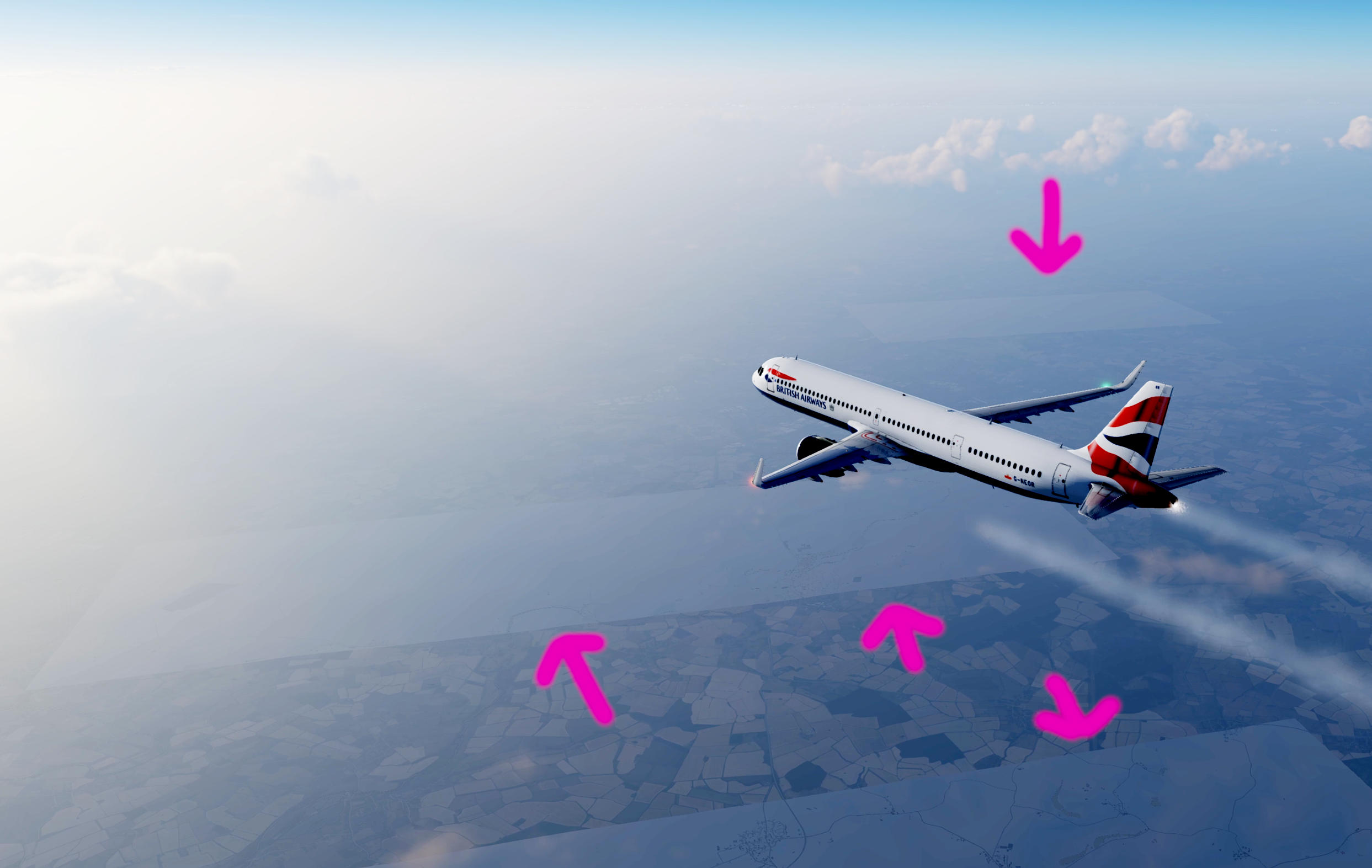
This is usually caused by a FUSE mount issue, most commonly the result of the operating system killing the FUSE process due to out of memory (OOM) conditions.
If the operating system did kill the process, it will have added a journal entry of this event.
# Check for OOM killer activity
journalctl -k --since "1 hour ago" | grep -iE "oom|killed process|out of memory"

# Check for fuse-related errors
journalctl --since "1 hour ago" | grep -iE "fuse|xearthlayer"
If your system memory is less than 8GB, consider increasing swap space or upgrading RAM. See the Performance section for cache tuning recommendations.
MALLOC_MMAP_THRESHOLD_, MALLOC_ARENA_MAX or GLIBC_TUNABLES, your values are left alone. This applies to Linux only.Memory behaviour is visible without running the whole session at --debug. A Memory sample line is written to the log every 60 seconds at normal log level, reporting resident and committed memory, swap, thread count, per-tier cache sizes and in-flight writes, alongside a Prefetch sample line covering region states and promotion counts. Quote anon_mb + swap_mb when reporting a memory problem: that is the committed footprint the OOM killer scores. Do not quote vm_mb, which also counts address space that is mapped but never touched, and carries a sawtooth of roughly a gigabyte from thread stacks that is not memory at all.
GPU encoding is not working or the wrong GPU is selected
If you have configured texture.compressor = gpu and are experiencing issues, here are some common causes and solutions.
Check that you have two physical GPUs first. GPU encoding is intended for systems with two physical cards, where one drives X-Plane and the other is free to encode. On a machine with a single GPU, set texture.compressor = ispc instead. Sharing one card between rendering and encoding costs you frames and slows tile delivery at the same time. Several adapters listed by xearthlayer diagnostics do not mean several GPUs, because one card appears once per graphics backend.
GPU not detected: Run xearthlayer diagnostics to list available GPU adapters on your system. If no GPUs are listed, ensure your GPU drivers are installed correctly and that Vulkan support is available. See the CLI Reference for more on the diagnostics command.
Wrong GPU selected (integrated vs discrete): On systems with both an integrated GPU (iGPU) and a discrete GPU (dGPU), XEarthLayer may select the wrong adapter. Configure the texture.gpu_device setting to target the correct GPU:
[texture]
compressor = gpu
gpu_device = integrated  ; Use iGPU for encoding while dGPU runs X-Plane
Valid values are integrated, discrete, or an adapter name substring (e.g., Radeon, RTX 5090). Run xearthlayer diagnostics to see available adapters.
Fallback options: If GPU encoding is not available or causes issues, you can always fall back to CPU-based compression. Set texture.compressor = ispc for SIMD-accelerated encoding, or texture.compressor = software for a portable fallback that works on any system.
I found a bug! How do I report it?
First, check the XEarthLayer GitHub issues to see if the bug has already been reported. If so, add your details to the existing issue. If it’s a new issue, follow the issue template to create a new report.
The issue template asks for the output of xearthlayer diagnostics. Measuring the cache directory is bounded at five seconds, so the command completes even on a multi-terabyte cache. If the size cannot be measured in that time it is reported as unmeasured and the rest of the report still prints, which is not itself a fault.
Attaching the Memory sample and Prefetch sample lines from ~/.xearthlayer/xearthlayer.log is also useful for anything performance or memory related — both are written at normal log level, so you do not need to reproduce the problem under --debug.
Where can I get help?
The XEarthLayer community is active and happy to help with questions, troubleshooting, and general discussion:
- Discord — Join the XEarthLayer Discord server for real-time chat with other users and the developer
- GitHub Discussions — Post questions and share ideas on GitHub Discussions
- GitHub Issues — Report bugs or request features via GitHub Issues
Performance
How can I improve performance?
Performance optimization is a broad topic that extends well beyond XEarthLayer itself. If you’re experiencing performance issues in X-Plane, they are most likely related to X-Plane’s rendering settings rather than XEarthLayer.
X-Plane settings to review
- Visual effects - Reduce reflection and shadow quality
- Draw distance - Lower the number of objects rendered at distance
- Anti-aliasing - Reduce MSAA or switch to FXAA
- Texture quality - Ensure this matches your VRAM capacity
XEarthLayer-specific tips:
- Ensure adequate disk cache to minimize network downloads during flight
- Use
bc1texture format instead ofbc3if you don’t need alpha transparency (smaller files, faster encoding) - Monitor the XEarthLayer log for timeout warnings that may indicate bottlenecks
- If running on limited hardware, reduce
executor.max_concurrent_jobsandgeneration.threads. Resource pool capacities are not configurable —executor.network_concurrent,executor.cpu_concurrent,executor.disk_io_concurrentandcache.disk_io_profilehave been removed because they never reached the executor - Move DDS encoding off the CPU with
texture.compressor = gpuandtexture.gpu_device = integratedif you have an integrated GPU sitting idle while the discrete GPU runs X-Plane
For detailed configuration guidance, see the Configuration page.
What are the recommended cache settings?
Disk cache: Use as much space as you can reasonably allocate. Larger disk caches reduce network traffic and improve load times for previously visited areas. The default is 20GB; a minimum of 50GB is recommended, with 100GB+ being ideal for frequent flyers. For best results, place the cache on a fast NVMe or SSD that is not the primary system volume.
Memory cache: The default is 512MB, and the setup wizard recommends your system RAM divided by 12, rounded to the nearest whole GB. Bigger is not automatically better here — the memory cache is a staging buffer for tiles X-Plane is actively reading, not the retention layer, so 2-4GB is ample on a 32GB machine and the DDS disk cache is what actually saves you re-downloading. Keep in mind that X-Plane itself wants around 15GB during initial scene loading, and that the two are competing for the same RAM.
[cache]
memory_size = 8GB
disk_size = 50GB
Low memory systems: If system memory is limited (less than 32GB total), consider creating swap space to provide additional virtual memory for both XEarthLayer and X-Plane. This is particularly important if your GPU has less than 8GB of VRAM, as the system may need to accommodate texture overflow.