Frequently Asked Questions
Find answers to common questions about XEarthLayer.
General
What is XEarthLayer?
XEarthLayer is a just-in-time satellite imagery streaming system for X-Plane 12. Instead of downloading hundreds of gigabytes of ortho scenery upfront, XEarthLayer streams satellite imagery on-demand as you fly.
Which operating systems are supported?
Currently, XEarthLayer supports Linux only. macOS support may be added in the future if there is enough community interest.
Please add a feature request/up vote on Github if you would like to see XEarthLayer on macOS.
Windows is well supported by alternative products and likely will never be supported.
Is XEarthLayer free?
Yes, XEarthLayer is free and open source software released under the MIT license.
How is XEarthLayer different from other software, like AutoOrtho for example?
XEarthLayer, AutoOrtho, X-Plane Map Enhancement and similar tools all achieve the same objective: streaming satellite orthographic photo scenery into the X-Plane simulator. They all work in largely the same way.
XEarthLayer was designed to be as lightweight and fast as possible, using minimal memory and CPU time to deliver scenery to X-Plane efficiently.
For this reason, Rust was chosen as the implementation language, given its core principles of Performance, Reliability and Productivity. AutoOrtho was implemented in Python, which is popular but not ideally suited for high-throughput runtime environments.
The author of XEarthLayer had been using both AutoOrtho and X-Plane Map Enhancement on a Windows setup previously. When the simulator was migrated to Linux in 2025, the original AutoOrtho was unable to maintain a stable simulator session. XEarthLayer was created in response to not being able to use the alternatives.
Ultimately, all of these systems provide the same in-simulator experience, so which one you use is completely up to you.
| Photo Scenery System | Open Source | X-Plane Interface | Programming Language | OS | Maintained |
|---|---|---|---|---|---|
| XEarthLayer | Yes | Fuse / XGPS2 | Rust | Linux | Yes |
| AutoOrtho | Yes | Fuse | Python | Windows, macOS, Linux | No |
| AutoOrtho Continued | Yes | Fuse | Python | Windows, macOS, Linux | Yes |
| X-Plane Map Enhancement | No | Fuse | Unknown | Windows | Yes |
As of January 1, 2026
Can XEarthLayer be used with Microsoft Flight Simulator?
No.
Installation
Why won’t XEarthLayer run?
XEarthLayer should provide messages to the command line if there is an issue executing any part of the program. If you are not seeing any output, check your system journal for issues that would prevent XEarthLayer from starting.
# Check kernel log for OOM kills or process terminations
journalctl -k --since "1 hour ago" | grep -iE "oom|killed process|out of memory"

# Check for xearthlayer specific entries
journalctl --since "1 hour ago" | grep -i xearthlayer
These are some factors that could prevent XEarthLayer from launching:
- Incorrect system architecture for the binary
- System killing the process due to out of memory (OOM)
- Failure to initialize
fusemounts
Check XEarthLayer’s own logs for messages that may not be printed to stdout or stderr.
tail -f ~/.xearthlayer/xearthlayer.log
How do I update to the latest version?
Download the latest package for your distribution from the GitHub releases and install it over your existing installation.
Usage
How much bandwidth does XEarthLayer use?
Bandwidth usage depends on many factors: the detail level of the scenery you’re flying over, how much scenery is already cached locally, and your cache size.
Starting from a cold cache, expect to download about 6-10GB of data to initialize the simulator. During flight, you can expect to use 3-5GB per degree of traversal, depending on scenery type.
If you have an internet connection with data limits or caps, increase your disk cache size as much as possible to minimize repeated downloads. However, for metered connections, XEarthLayer’s value diminishes significantly—you may want to consider storing Ortho tiles locally instead.
Can I use XEarthLayer offline?
XEarthLayer requires an internet connection to stream imagery. However, previously downloaded tiles are cached locally, so areas you’ve flown before will load from cache even without connectivity.
Troubleshooting
X-Plane does not load XEarthLayer scenery into the simulator
This is usually because XEarthLayer’s FUSE mounts are not listed in X-Plane’s Custom Scenery/scenery_packs.ini file.
Checklist:
- Ensure XEarthLayer is fully started and running before launching X-Plane. X-Plane indexes scenery at startup, so starting XEarthLayer afterward means its scenery won’t be detected.
- Verify that
zz_XEL_*_Orthoandzy_XEL_*_Overlaypacks are listed in yourscenery_packs.inifile. They typically appear at the bottom but can be anywhere in the file.
If the above doesn’t resolve the issue, ask for help on Discord, the X-Plane.org forums, or create a GitHub issue.
Tiles are downloading but not appearing in X-Plane
This can happen for several valid reasons:
- You are flying in a region outside of XEarthLayer scenery coverage, but within the X-Plane or XEarthLayer loading range. X-Plane loads a large area around the aircraft to ensure scenery tiles are available before you can see them. XEarthLayer loads an even bigger radius to stay ahead of X-Plane.
- You have a scenery package installed that provides its own mesh. Some third-party scenery providers include custom mesh that overrides XEarthLayer scenery for that specific area.
Help! I am seeing magenta tiles on the scenery when I fly.
Magenta tiles are returned when XEarthLayer is unable to construct a tile within the configured timeout period.
This can be caused by several factors:
- Slow or throttled downloads from the mapping service
- Operating system overhead reducing available CPU and memory
- Configuration that is too aggressive for your system’s capabilities
- Network or disk I/O bottlenecks
The XEarthLayer log outputs information about failed tile construction jobs and chunk downloads, so review it before posting in community channels.
If the situation persists, it is likely caused by configuration that exceeds your system’s capabilities. XEarthLayer deadlocks are rare but can occur if network or disk I/O is exhausted.
Try reducing the following settings by 50% and testing again. If things stabilize, you can slowly increase them one by one:
[cache]
disk_io_profile = auto

[texture]
format = bc1

[download]
timeout = 30
retries = 5

[generation]
timeout = 20
threads = 16              # Try half your CPU core count

[performance]
max_http_concurrent = 64  # Reduce by 50% from default
max_cpu_concurrent = 1
max_prefetch_in_flight = 8
coalesce_channel_capacity = 8
Help! I am seeing white tiles on the scenery when I fly.
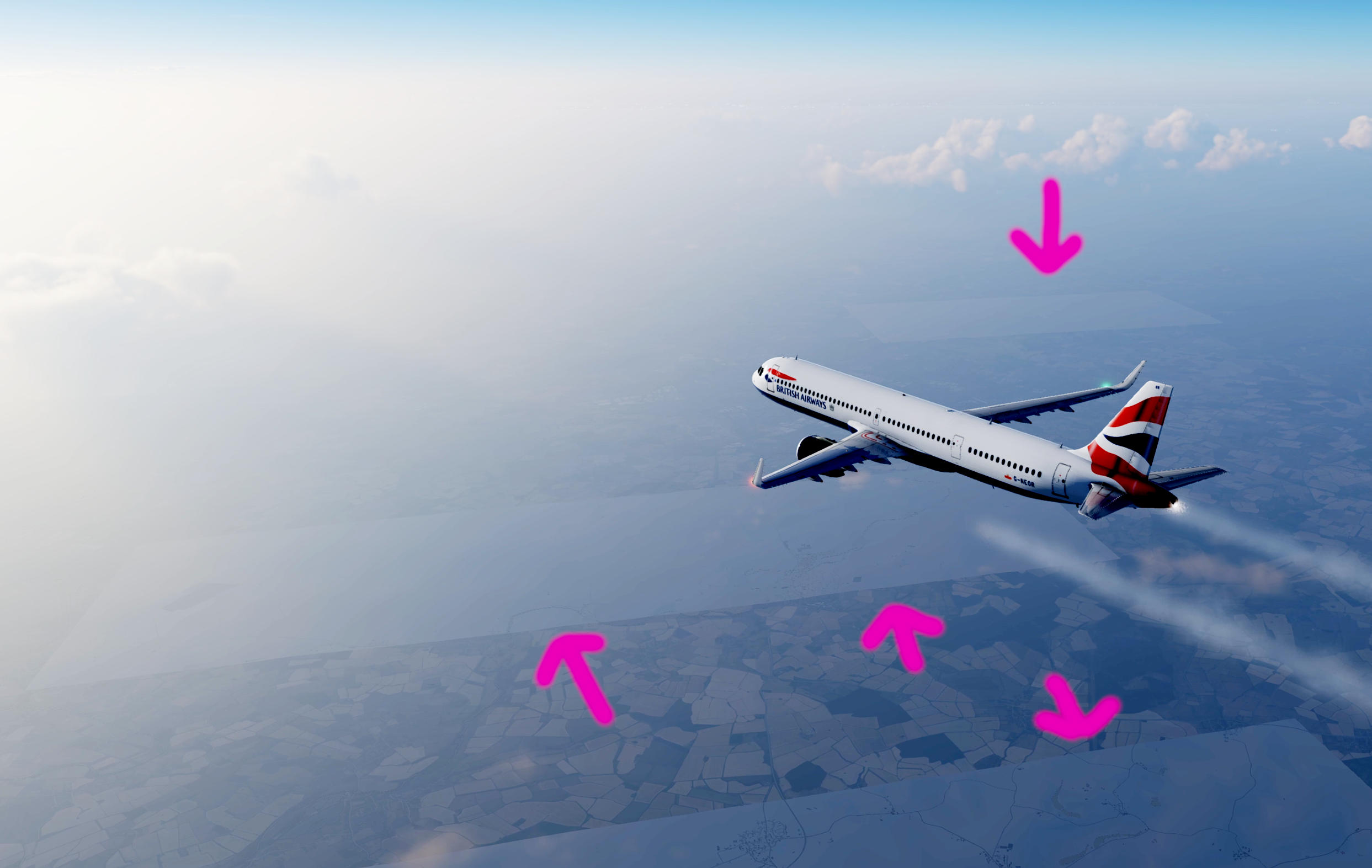
This is usually caused by a FUSE mount issue, most commonly the result of the operating system killing the FUSE process due to out of memory (OOM) conditions.
If the operating system did kill the process, it will have added a journal entry of this event.
# Check for OOM killer activity
journalctl -k --since "1 hour ago" | grep -iE "oom|killed process|out of memory"

# Check for fuse-related errors
journalctl --since "1 hour ago" | grep -iE "fuse|xearthlayer"
If your system memory is less than 4GB, consider increasing swap space or upgrading RAM. See the Performance section for cache tuning recommendations.
I found a bug! How do I report it?
First, check the XEarthLayer GitHub issues to see if the bug has already been reported. If so, add your details to the existing issue. If it’s a new issue, follow the issue template to create a new report.
Issues submitted without the required logs and system diagnostics will be closed automatically.
Where can I get help?
The XEarthLayer community is active and happy to help with questions, troubleshooting, and general discussion:
- Discord — Join the XEarthLayer Discord server for real-time chat with other users and the developer
- GitHub Discussions — Post questions and share ideas on GitHub Discussions
- GitHub Issues — Report bugs or request features via GitHub Issues
Performance
How can I improve performance?
Performance optimization is a broad topic that extends well beyond XEarthLayer itself. If you’re experiencing performance issues in X-Plane, they are most likely related to X-Plane’s rendering settings rather than XEarthLayer.
X-Plane settings to review
- Visual effects - Reduce reflection and shadow quality
- Draw distance - Lower the number of objects rendered at distance
- Anti-aliasing - Reduce MSAA or switch to FXAA
- Texture quality - Ensure this matches your VRAM capacity
XEarthLayer-specific tips:
- Ensure adequate disk cache to minimize network downloads during flight
- Use
bc1texture format instead ofbc3if you don’t need alpha transparency (smaller files, faster encoding) - Monitor the XEarthLayer log for timeout warnings that may indicate bottlenecks
- If running on limited hardware, reduce
max_http_concurrentandthreadssettings
For detailed configuration guidance, see the Configuration page.
What are the recommended cache settings?
Disk cache: Use as much space as you can reasonably allocate. Larger disk caches reduce network traffic and improve load times for previously visited areas. A minimum of 50GB is recommended, with 100GB+ being ideal for frequent flyers.
Memory cache: A value of approximately 15GB works well for most scenarios. X-Plane typically requires around 15GB of system memory during initial scene loading, so this aligns well with typical usage patterns. Adjust based on your available system memory.
[cache]
memory_size = 15 GB
disk_size = 100 GB
Low memory systems: If system memory is limited (less than 32GB total), consider creating swap space to provide additional virtual memory for both XEarthLayer and X-Plane. This is particularly important if your GPU has less than 8GB of VRAM, as the system may need to accommodate texture overflow.
Heavy swap usage on SSDs or NVMe drives can significantly reduce drive lifespan due to the high volume of write operations. If possible, place swap on a separate, less critical drive or consider upgrading system RAM instead.